

Connecting your Bluehost email with Gmail is a simple process. It allows you to manage all your emails in one place.
Many people prefer using Gmail due to its user-friendly interface and robust features. Integrating your Bluehost email with Gmail can streamline your communication. This integration enables you to access your Bluehost emails directly from your Gmail account. It helps you avoid the hassle of switching between different email platforms.
Plus, Gmail offers excellent spam filtering, organization tools, and reliability. By connecting your Bluehost email to Gmail, you gain the benefits of both services. In this post, we will guide you through the steps to set up and use your Bluehost email with Gmail effectively. Let’s get started!

Credit: www.macmister.com
Introduction To Bluehost Email
Link your Bluehost email with Gmail to manage messages in one place. Follow simple steps to connect both accounts seamlessly. Enjoy efficient email management with this integration.
Bluehost is a popular web hosting service. It offers reliable email solutions for businesses. Bluehost email services are easy to use and integrate. You can use them to manage your professional communication efficiently. With Bluehost email, you get a custom email address. This helps in building trust with your clients. It also makes your business look more professional.Benefits Of Bluehost Email
Bluehost email offers several benefits for businesses. First, you get a custom domain email. This makes your business emails look professional. Second, Bluehost email services are reliable. They ensure your emails are delivered without delay. This helps in maintaining timely communication with clients. Third, Bluehost provides ample storage for your emails. You won’t run out of space quickly. This means you can store important emails without worry. Finally, Bluehost offers robust security features. Your emails are protected from spam and phishing attacks. This ensures your sensitive information remains safe.Setting Up Bluehost Email
Setting up Bluehost email is simple. Follow these steps to get started: 1. Log in to your Bluehost account. Go to the “Email” section. 2. Click on “Create New Email Account”. Enter the required details. 3. Choose a username and password. Make sure they are secure. 4. Click “Create”. Your new email account is now ready. Next, configure your email client. This could be Outlook, Thunderbird, or another program. Use the settings provided by Bluehost to complete this step. Finally, test your new email. Send and receive a few emails to ensure everything works. You are now ready to use your Bluehost email for professional communication. “`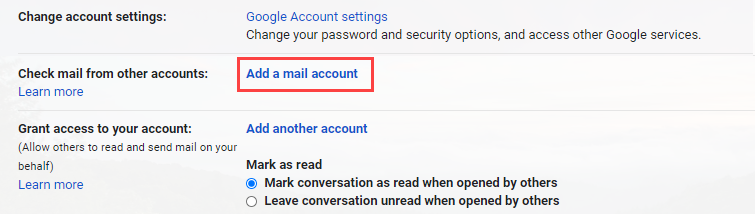
Credit: www.bluehost.com
Gmail Integration
Many users prefer managing all their emails in one place. Integrating your Bluehost email with Gmail can simplify your email management. This allows you to access and send emails from your Bluehost account using Gmail. Let’s explore the benefits and the steps required for this integration.
Advantages Of Using Gmail
Gmail offers a user-friendly interface. It makes email management easy and efficient. You get powerful search features to find emails quickly. Gmail also provides robust spam filtering to keep your inbox clean. With its integration, you can enjoy these features with your Bluehost email.
Another advantage is accessibility. You can access your Gmail from any device. This means you can check your Bluehost email on your phone, tablet, or computer. Gmail also offers a large storage space. This ensures you never run out of space for your emails.
Requirements For Integration
First, you need a Bluehost email account. Make sure you have your email address and password ready. You also need a Gmail account. If you don’t have one, create it for free.
Next, you need to enable POP3 or IMAP on your Bluehost email. This allows Gmail to fetch your emails. Go to your Bluehost control panel and find the email settings. Enable POP3 or IMAP as per your preference.
Finally, ensure you have a stable internet connection. This is necessary for setting up and accessing your emails. Once you have all these in place, you are ready to integrate your Bluehost email with Gmail.
Configuring Bluehost Email In Gmail
Many users prefer to manage all their emails in one place. Gmail is a popular choice for this. Integrating your Bluehost email with Gmail can streamline your email management. This guide will help you configure your Bluehost email in Gmail.
Accessing Gmail Settings
First, log in to your Gmail account. In the top right corner, click on the gear icon. This will open the Settings menu. Select “See all settings” from the dropdown.
In the Settings window, click on the Accounts and Import tab. This is where you can add and manage your email accounts.
Adding A New Email Account
Under the Accounts and Import tab, find the section labeled “Check mail from other accounts”. Click on “Add a mail account”. A new window will pop up.
In this window, enter your Bluehost email address and click “Next”. Choose “Import emails from my other account (POP3)” and click “Next”.
Now, fill in the following details:
| Field | Information |
|---|---|
| Username | Your Bluehost email address |
| Password | Your Bluehost email password |
| POP Server | mail.yourdomain.com |
| Port | 995 |
Check the box for “Always use a secure connection (SSL)”. This ensures your emails are encrypted.
Click “Add Account”. Your Bluehost email should now be integrated into Gmail.
Next, choose if you want to send emails from this account. Select “Yes” and click “Next”.
Enter your name and click “Next Step”. Fill in the SMTP server details:
- SMTP Server: mail.yourdomain.com
- Port: 465
- Username: Your Bluehost email address
- Password: Your Bluehost email password
Check the box for “Secured connection using SSL”. Click “Add Account”.
Gmail will send a verification code to your Bluehost email. Enter this code to complete the setup.
Pop3 Vs. Imap
Understanding the difference between POP3 and IMAP is crucial when setting up your Bluehost email with Gmail. These protocols determine how your email client communicates with the email server and how your emails are stored. Choosing the right one can significantly impact your email experience.
Differences Between Pop3 And Imap
POP3 (Post Office Protocol 3) and IMAP (Internet Message Access Protocol) serve different purposes:
| Feature | POP3 | IMAP |
|---|---|---|
| Email Storage | Downloads emails to your device | Stores emails on the server |
| Access | Available offline once downloaded | Access from any device |
| Synchronization | Does not sync across devices | Syncs emails across all devices |
| Email Management | Limited to the device it’s downloaded | Manage emails directly on the server |
Choosing The Right Protocol
Consider your email management needs:
- Use POP3 if you prefer accessing your emails offline or if you use only one device for email.
- Choose IMAP if you access emails from multiple devices and want real-time synchronization.
POP3 is suitable for users who need a local copy of their emails. In contrast, IMAP is ideal for users who need to access emails from different devices and locations.
Most users today prefer IMAP due to its flexibility and synchronization capabilities.
Entering Server Information
To connect your Bluehost email with Gmail, entering server information is crucial. Proper server settings ensure emails sync seamlessly between platforms. Let’s dive into the details.
Incoming Mail Server Settings
First, configure the incoming mail server settings. This allows Gmail to fetch emails from your Bluehost account. You need to enter the following details:
- Server: mail.yourdomain.com
- Port: 993 (IMAP) or 995 (POP3)
- Username: Your full email address
- Password: Your email password
Ensure the server type matches your preference (IMAP or POP3). IMAP is recommended for syncing across multiple devices.
Outgoing Mail Server Settings
Next, set up the outgoing mail server settings. This ensures you can send emails from Gmail using your Bluehost address. Enter the following:
- Server: mail.yourdomain.com
- Port: 465 (SSL) or 587 (TLS)
- Username: Your full email address
- Password: Your email password
Choose the encryption method (SSL or TLS) that matches your server port. Most users select SSL for added security.
By entering these settings correctly, you ensure smooth email operations. Your Bluehost email will now work seamlessly with Gmail.

Credit: www.youtube.com
Verifying Your Email Address
Verifying your email address is a crucial step in using Bluehost email with Gmail. This process ensures that Gmail can send and receive emails from your Bluehost account. Follow the steps below to verify your email address efficiently.
Receiving The Verification Code
First, log in to your Gmail account. Click the gear icon and select “See all settings”. Navigate to the “Accounts and Import” tab. Under “Send mail as”, click “Add another email address”.
A new window will pop up. Enter your name and Bluehost email address. Click “Next Step”. Gmail will send a verification code to your Bluehost email.
Open a new tab and log in to your Bluehost email account. Locate the email from Gmail containing the verification code. Copy the code.
Completing The Verification Process
Return to the Gmail settings window. Paste the verification code into the provided field. Click “Verify”.
Your Bluehost email address is now linked with your Gmail account. You can send and receive emails using Gmail. This integration helps manage your emails more effectively.
Troubleshooting Common Issues
Encountering issues while trying to use Bluehost email with Gmail can be frustrating. Understanding the common problems and their solutions will save you time. This section will help you troubleshoot some of the most common issues.
Incorrect Server Settings
Incorrect server settings can prevent your Bluehost email from syncing with Gmail. Ensure that you have the correct settings.
| Setting | Value |
|---|---|
| Incoming Mail Server | mail.yourdomain.com |
| Outgoing Mail Server | mail.yourdomain.com |
| IMAP Port | 993 |
| SMTP Port | 465 |
Double-check these values in your Gmail settings. A single error can disrupt the connection.
Authentication Problems
Authentication problems are another common issue. Gmail might not be able to log into your Bluehost email if there are authentication errors.
- Ensure you are using the correct email address and password.
- Enable the “Allow less secure apps” option in your Bluehost email account.
- Check if two-factor authentication is causing issues.
If the problem persists, reset your email password. Then, update the password in Gmail settings.
Managing Multiple Email Accounts
Managing multiple email accounts can be overwhelming. Yet, integrating Bluehost email with Gmail simplifies the process. This integration helps you keep all your emails in one place. You save time and stay organized.
Switching Between Accounts
Switching between accounts in Gmail is straightforward. Open your Gmail account. Click on your profile picture at the top right. You will see a list of your email addresses. Select the email account you want to access. This simple step allows you to manage different emails without logging out.
Organizing Your Inbox
Organizing your inbox is crucial for productivity. Gmail offers several tools to help. Use labels to categorize your emails. Create filters to sort incoming mail automatically. Archive old emails to keep your inbox clean. You can also use the search bar to find specific emails quickly. These tools make managing multiple accounts easier and more efficient.
Frequently Asked Questions
How To Connect Bluehost Email To Gmail?
To connect Bluehost email to Gmail, go to Gmail settings. Then, add your Bluehost email account in the ‘Accounts and Import’ tab. Follow the prompts.
Can I Use Bluehost Email On Gmail?
Yes, you can use Bluehost email on Gmail. Simply configure your Bluehost email within Gmail settings. This way, you can send and receive emails using Gmail.
Why Link Bluehost Email With Gmail?
Linking Bluehost email with Gmail offers convenience. You can manage multiple email accounts in one place. It also provides better spam protection and a familiar interface.
What Are The Benefits Of Using Gmail For Bluehost Email?
Using Gmail for Bluehost email helps centralize your communications. It also provides a reliable interface, strong security features, and excellent spam filtering.
Conclusion
You can now seamlessly use Bluehost email with Gmail. This setup simplifies your email management. Follow the steps carefully for smooth integration. You’ll enjoy the convenience of accessing all emails in one place. Remember to check settings regularly. This ensures everything works correctly.
Happy emailing with Bluehost and Gmail!
