

Using Bookstack is simple and effective for organizing knowledge. This platform helps you create and manage your documentation with ease.
Bookstack is a powerful tool for teams and individuals. It offers a user-friendly interface to store and access information. Whether you’re managing projects, documenting processes, or compiling resources, Bookstack has you covered. It allows you to create books, chapters, and pages to structure your content logically.
You can also collaborate with team members in real-time. This makes it easier to keep everyone on the same page. In this guide, we’ll walk you through the basics of using Bookstack. You’ll learn how to set up your account, create content, and organize it efficiently. Let’s get started and explore how Bookstack can simplify your documentation needs.
Introduction To Bookstack
Bookstack is a simple yet powerful tool for organizing information. It helps keep your notes and documents in one place. This guide will walk you through the basics of using Bookstack.
What Is Bookstack?
Bookstack is an open-source platform. It is designed for creating and managing documentation. It acts like a digital library, where you can store and categorize your notes. You can think of it as a wiki for your personal or team use. It supports text, images, and links.
Why Choose Bookstack?
Bookstack is user-friendly and easy to set up. It does not require advanced technical skills. Its simple interface makes it accessible for everyone. You can create books, chapters, and pages to organize your content. This structure helps in keeping things neat and easy to find.
Bookstack is also versatile. You can use it for personal projects, team collaboration, or company documentation. It supports multiple users, making teamwork smooth. You can assign roles and permissions to control access.
Another reason to choose Bookstack is its customization options. You can tailor it to fit your needs. Change themes, add extensions, and integrate with other tools. It’s flexible and adaptable.
Credit: selfhostedheaven.com
Setting Up Bookstack
Bookstack is a powerful tool for managing documentation. Setting it up can seem daunting, but it’s straightforward. This guide will walk you through the process.
Installation Requirements
Before installing Bookstack, ensure you have the necessary requirements. You need a server with PHP, MySQL, or MariaDB. Apache or Nginx web server is also required. Make sure your server runs on Linux. A domain name is also beneficial.
Step-by-step Installation Guide
Follow these steps to install Bookstack:
- Connect to your server via SSH.
- Update your server’s package list with
sudo apt update. - Install Apache with
sudo apt install apache2. - Install MySQL with
sudo apt install mysql-server. - Secure MySQL by running
sudo mysql_secure_installation. - Create a MySQL database for Bookstack.
- Install PHP and required extensions with
sudo apt install php libapache2-mod-php php-mysql php-xml php-mbstring php-zip php-gd. - Download Bookstack from GitHub with
git clone https://github.com/BookStackApp/BookStack.git. - Move into the Bookstack directory with
cd BookStack. - Copy the environment file with
cp .env.example .env. - Edit the
.envfile to match your database settings. - Install Composer dependencies with
composer install. - Generate an application key with
php artisan key:generate. - Run database migrations with
php artisan migrate. - Set the correct permissions for storage with
sudo chown -R www-data:www-data /path/to/bookstack/storage. - Restart Apache with
sudo systemctl restart apache2.
Bookstack should now be running on your server. Open your browser and navigate to your domain. Follow the on-screen instructions to complete the setup.
Navigating The Interface
Understanding how to navigate Bookstack’s interface is crucial for maximizing its use. This section will guide you through the various components, ensuring a smooth experience.
Dashboard Overview
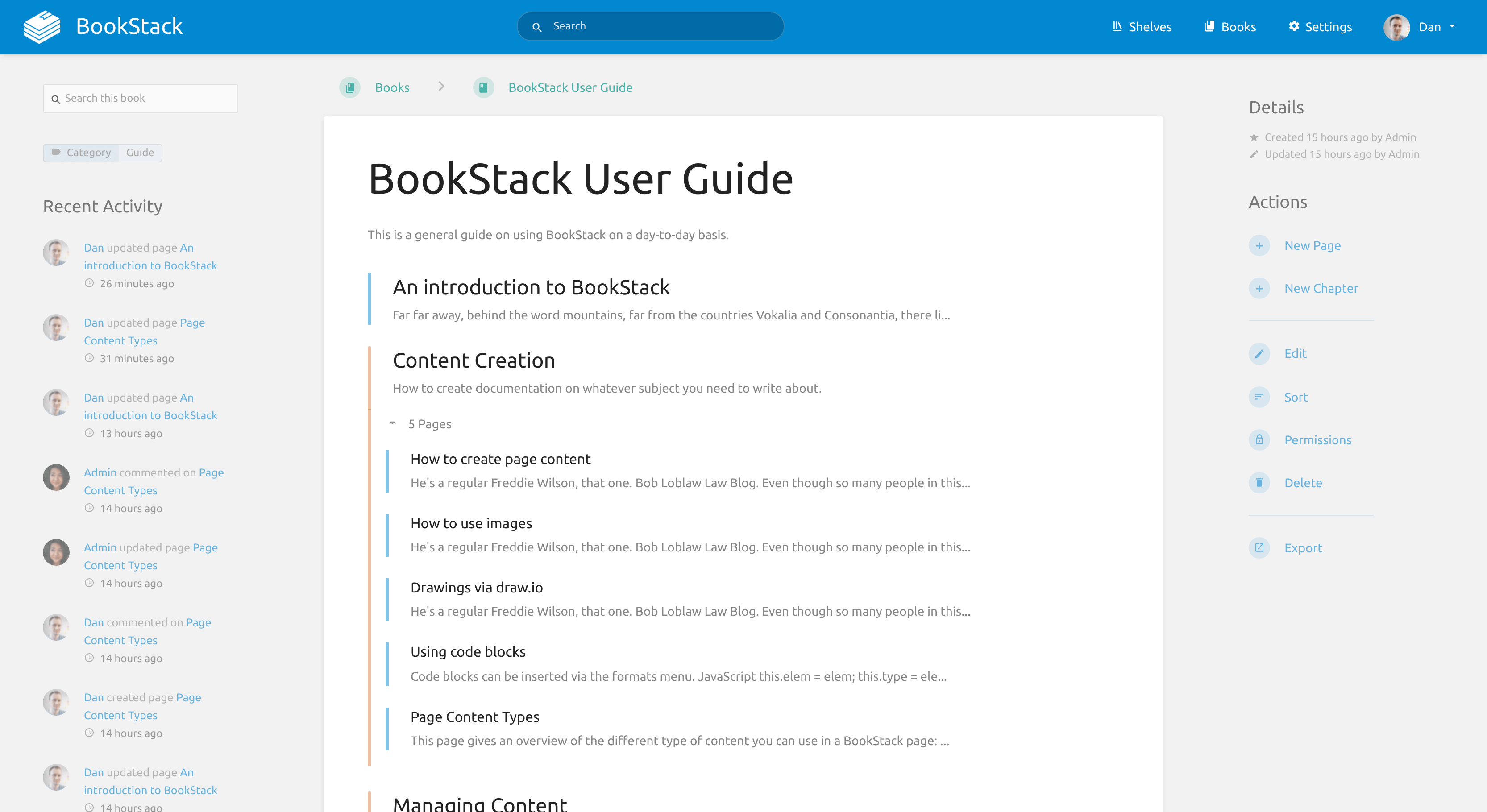
The Dashboard is your starting point. It offers quick access to your most important sections. You will see a list of recently updated pages and a search bar at the top.
Here’s what the Dashboard includes:
- Search Bar: Find pages and content quickly.
- Recently Updated Pages: Stay up to date with recent changes.
- Shortcuts: Access frequently used sections.
Key Features Explained
Bookstack offers several key features that enhance usability. Understanding these can help you navigate more efficiently.
Below are some of the main features:
| Feature | Description |
|---|---|
| Books | Organize your content into different books. Each book can have multiple chapters and pages. |
| Chapters | Sub-divide your books into chapters. This helps in categorizing the content. |
| Pages | Create individual pages for detailed content. Pages can include text, images, and code snippets. |
Use these features to keep your content organized and accessible.
Creating And Managing Content
Creating and managing content in Bookstack is simple and intuitive. This section will guide you on how to add new pages and organize content with shelves. Follow these steps to keep your content neat and accessible.
Adding New Pages
To start, log into your Bookstack account. Navigate to the desired book where you want to add a new page. Click on the “Add Page” button. Give your new page a title. This helps in identifying the page easily. Type your content in the editor. Use headings, lists, and other formatting tools to make your content clear and readable. Once you are done, click “Save”. Your new page is now part of the book.
Organizing Content With Shelves
Shelves help in grouping multiple books together. To create a shelf, go to the main menu and select “Shelves”. Click on the “Create New Shelf” button. Provide a name and description for the shelf. Click “Save”. Your new shelf is now ready. To add books to the shelf, navigate to the shelf’s page. Click on the “Add Books” button. Select the books you want to include. Click “Save”. Your books are now organized under the shelf.
Collaborating With Team Members
BookStack is a powerful tool for team collaboration. It allows seamless sharing of knowledge. Team members can work together on documents and pages. The platform provides various features to make collaboration easy and efficient.
User Roles And Permissions
BookStack offers flexible user roles and permissions. This helps manage access levels within your team. Here are the main roles:
- Admin: Full access to all settings and content.
- Editor: Can create, edit, and delete pages and chapters.
- Viewer: Can only view content, no editing rights.
Assign roles based on your team’s needs. This ensures everyone has the right level of access. You can easily change roles from the settings menu. This flexibility helps maintain security and control.
Tracking Changes And Revisions
BookStack makes it easy to track changes and revisions. Every edit is saved as a new version. This allows you to review and restore previous versions if needed.
- Open the page you want to check.
- Click on the Revisions tab.
- Browse through the list of saved versions.
- Select a version to view its content.
- Click Restore to revert to that version.
This feature ensures that no information is lost. It also helps track who made which changes. This is useful for accountability and transparency in team projects.
Customizing Your Bookstack
Customizing your Bookstack can enhance your user experience and make it truly yours. You can change the look and feel. You can also add new features. This guide will show you how to do both.
Personalizing The Look And Feel
You can change the appearance of your Bookstack. Start by accessing the settings menu. Here, you can upload your own logo. You can also change the theme color. Choose colors that match your style. This makes your Bookstack look unique.
You can also edit the CSS. This allows you to make detailed changes. For example, you can adjust the font size. Or change the background color. Little tweaks like these can make a big difference. They help to create a more personal experience.
Extending Functionality With Plugins
Plugins can add new features to your Bookstack. There are many plugins available. They can help you with different tasks. For example, some plugins allow you to integrate with other apps. Others can help with data analysis. They can make your Bookstack more powerful.
Installing a plugin is simple. Go to the plugins section in the settings menu. Browse through the available options. Once you find a plugin you like, click install. Follow the prompts to complete the setup. Now, you have new features in your Bookstack. This can make your work easier and more efficient.
Backup And Maintenance
Ensuring your Bookstack data is secure requires regular backup and maintenance. This not only protects your data but also keeps your system running smoothly. Follow these steps to maintain and back up your Bookstack effectively.
Regular Backup Procedures
Regular backups are essential. They safeguard your data against accidental loss or corruption.
- Backup Frequency: Schedule backups daily or weekly.
- Backup Location: Store backups on an external drive or cloud service.
- Backup Format: Use SQL dumps for database backup.
Here’s a simple command to back up your Bookstack database:
mysqldump -u [username] -p [database_name] > backup.sqlThis command creates a backup of your database in SQL format.
Updating Bookstack Safely
Keeping Bookstack updated ensures you have the latest features and security patches. Follow these steps to update Bookstack safely:
- Backup Data: Before updating, back up your database and files.
- Check Requirements: Ensure your server meets the new version requirements.
- Download Update: Download the latest version from the Bookstack website.
- Install Update: Extract the update and replace the old files.
- Run Migrations: Use the following command to update the database structure:
php artisan migrateThese steps will help you keep your Bookstack installation safe and current.
Credit: www.bookstackapp.com
Troubleshooting Common Issues
Using Bookstack can be rewarding, but sometimes issues arise. Knowing how to troubleshoot common problems ensures a smooth experience. Below are some tips to help you tackle common issues.
Common Error Messages
Encountering error messages can be frustrating. Here are some common ones you might see:
- 404 Not Found: This means the page you are looking for does not exist. Check the URL for typos.
- 500 Internal Server Error: The server encountered a problem. Try refreshing the page or clearing your browser cache.
- Permission Denied: You might not have the required permissions. Contact your admin for access.
Resolving these errors often involves simple fixes. Check the steps above and you should be able to continue using Bookstack smoothly.
Getting Help From The Community
The Bookstack community is a great resource. Many users and developers are willing to help. Here’s how you can get support:
- Visit the official forums. Search for similar issues or post your question.
- Check out the GitHub repository. Report bugs or request features.
- Join the Bookstack Discord. Chat with other users in real-time.
Engaging with the community not only helps you solve problems but also keeps you updated with new features and improvements.
Remember to be clear and concise when posting your issues. Provide as much information as possible, including error messages and screenshots.

Credit: insider.fiu.edu
Frequently Asked Questions
What Is Bookstack?
Bookstack is an open-source platform for organizing and managing documentation. It allows users to create, edit, and categorize content easily.
How Do You Install Bookstack?
To install Bookstack, download it from the official website. Follow the installation guide provided. You may need to configure a web server and database.
Can I Customize Bookstack Themes?
Yes, you can customize Bookstack themes. It offers flexibility to tailor the appearance and layout to fit your needs.
Is Bookstack Suitable For Teams?
Absolutely, Bookstack is ideal for teams. It supports collaborative editing and content organization, enhancing team productivity and knowledge sharing.
Conclusion
Navigating Bookstack is simpler than it seems. Start small, practice often. You’ll quickly find it useful for organizing your documents. It helps keep information in one place. Remember to explore its features. Each one enhances your experience. Don’t hesitate to ask for help if needed.
With time, you’ll get the hang of it. Enjoy the streamlined process. Happy organizing!
