

Onestream Live is a powerful tool for live streaming. It simplifies broadcasting across multiple platforms.
You might wonder how this tool actually works. Onestream Live lets you stream pre-recorded videos as live broadcasts. This means you can prepare your content ahead of time. It supports streaming to over 40 social media platforms at once. You can schedule your streams to go live at any future date.
This is perfect for reaching your audience across different time zones. The platform also offers real-time streaming with a user-friendly interface. You don’t need to be tech-savvy to use it. With Onestream Live, you can engage your audience seamlessly. Let’s dive deeper into how Onestream Live functions and how it can benefit your streaming needs.
Introduction To Onestream Live
Onestream Live is a powerful live streaming tool. It helps users stream pre-recorded videos on multiple platforms. This tool is user-friendly and efficient.
Purpose And Benefits
The main purpose of Onestream Live is to make streaming easy. It allows you to schedule and stream videos without being live. This saves time and effort.
Here are some key benefits:
- Stream pre-recorded videos to various platforms.
- Schedule streams for future dates.
- Reach a larger audience with less effort.
- Save time by automating the streaming process.
Key Features
Onestream Live offers many useful features. These features enhance the streaming experience.
| Feature | Description |
|---|---|
| Multi-Platform Streaming | Stream to Facebook, YouTube, and other platforms simultaneously. |
| Scheduling | Plan and schedule your streams in advance. |
| Cloud Storage | Store your videos in the cloud for easy access. |
| Analytics | Track your stream’s performance with detailed analytics. |
| Custom Branding | Add logos and overlays to your streams. |
These features make Onestream Live a valuable tool. It simplifies the streaming process and boosts productivity.
Getting Started
Onestream Live is a powerful tool for live streaming. Getting started is simple. Follow these steps to set up your account and configure initial settings. Let’s dive in!
Account Setup
First, visit the Onestream Live website. Click on the “Sign Up” button. Enter your email address and create a strong password. Follow the prompts to complete your registration.
After signing up, you will receive a confirmation email. Open the email and click on the confirmation link. This will activate your account. Log in with your email and password.
Initial Configuration
Once logged in, you will see the dashboard. Start by connecting your social media accounts. Click on “Add Account” and choose your preferred platform. Follow the instructions to grant Onestream Live access to your account.
Next, configure your streaming settings. Go to the “Settings” section. Choose your video quality, resolution, and frame rate. Ensure your internet connection is stable for smooth streaming.
Finally, test your setup. Click on “Go Live” to start a test stream. Check the video and audio quality. Make adjustments as needed. You’re now ready to start live streaming with Onestream Live!
Creating A Live Stream
Creating a live stream with Onestream Live is straightforward. You can broadcast your content to multiple platforms at once. This feature saves time and increases your reach.
Choosing A Platform
First, decide where you want to stream. Popular options include Facebook, YouTube, and Twitch. Onestream Live supports multiple platforms. You can choose one or all. Consider your audience and their habits. Some may prefer watching on Facebook, others on YouTube.
Setting Up Stream Details
Once you choose your platform, set up the stream details. Begin with a catchy title. Your title should grab attention quickly. Next, write a brief description. This tells viewers what to expect. Include key points and interesting facts.
Then, select the date and time for your stream. Make sure it fits your audience’s schedule. Add a custom thumbnail. A good thumbnail attracts more viewers. Finally, check your internet connection. A stable connection ensures smooth streaming.
Credit: onestream.live
Scheduling Live Streams
Scheduling live streams with Onestream Live is simple and intuitive. This feature allows users to plan their broadcasts in advance. This helps in organizing content and ensuring timely engagement with the audience.
Selecting Date And Time
First, choose the date for your live stream. Use the calendar tool to select the desired day. Next, set the time you want your stream to start. Adjust the time zone if needed. This ensures your audience knows when to tune in.
Recurring Streams
Want to go live at regular intervals? Onestream Live has got you covered. You can set up recurring streams with ease. Choose the frequency, whether daily, weekly, or monthly. This helps in building a consistent streaming schedule.
Customizing Your Stream
Customizing your stream on Onestream Live can make your broadcast stand out. Adding personal touches keeps your audience engaged and coming back for more. Let’s explore how you can customize your stream with overlays, graphics, text, and effects.
Overlay And Graphics
Overlays and graphics can give your stream a unique look. Use them to highlight key parts of your broadcast. For example, you can add a border around your webcam feed. This makes it stand out. You can also add logos to promote your brand. Simple yet effective. Choose colors and designs that match your theme.
Graphics can inform your viewers too. Add images to show your schedule or upcoming events. Use them wisely for a more professional stream.
Adding Text And Effects
Adding text to your stream can provide important information. You can show your name, social media handles, or any message. Make sure the text is clear and easy to read.
Effects can add a dynamic feel to your stream. Use transitions to switch between scenes smoothly. Add animations to grab attention. But don’t overdo it. Too many effects can be distracting.
Credit: onestream.live
Integrating With Social Media
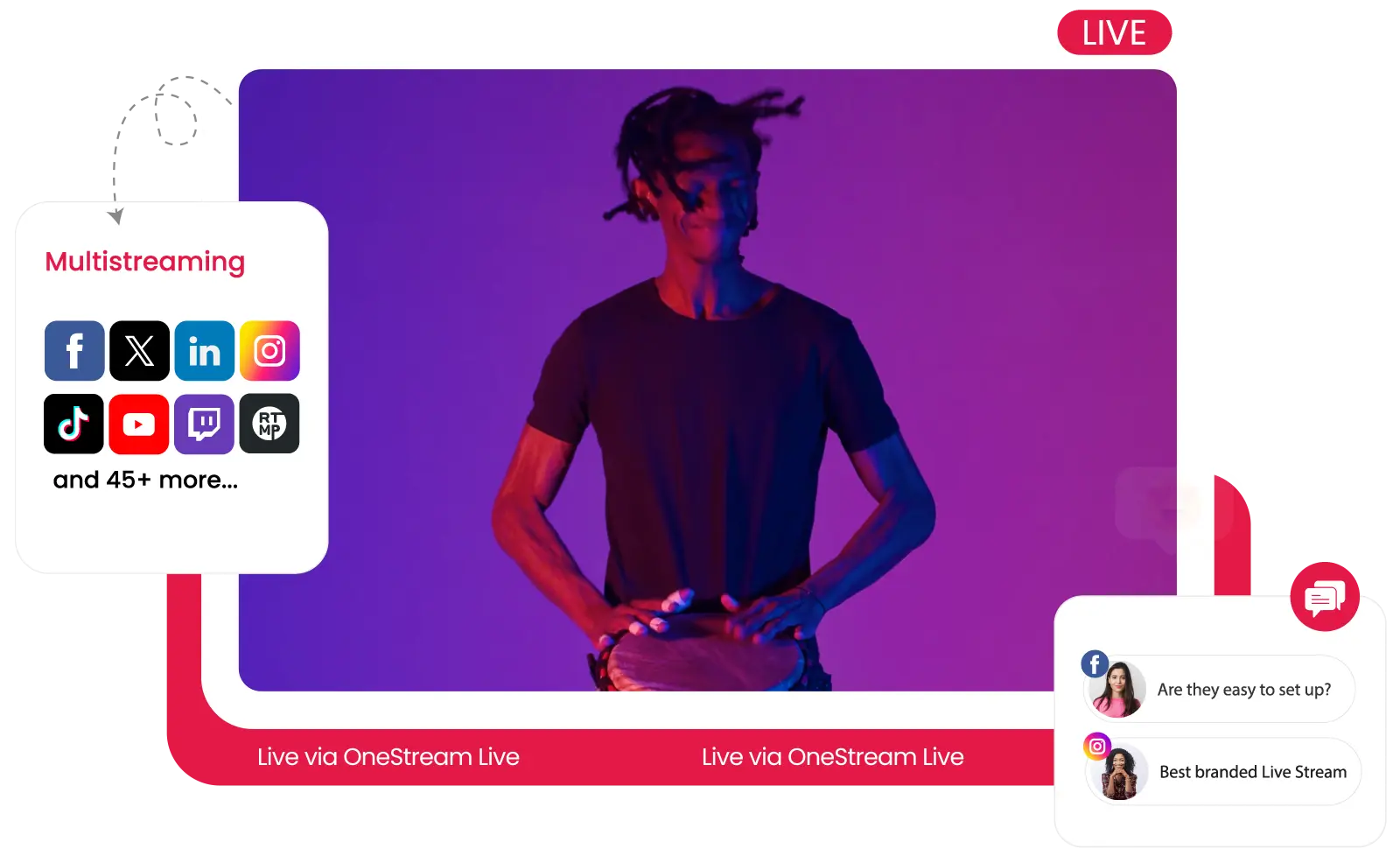
Integrating OneStream Live with social media can significantly increase your reach. It allows you to share your live streams on multiple platforms. This can help you engage with a wider audience.
Connecting Accounts
To start, you need to connect your social media accounts to OneStream Live. This process is simple and quick.
- Go to your OneStream Live dashboard.
- Click on “Accounts” in the menu.
- Select “Add Account”.
- Choose your preferred social media platform.
- Follow the prompts to authorize OneStream Live.
Once connected, your accounts will appear in the dashboard. You can connect multiple social media profiles. This allows you to stream on different platforms at the same time.
Sharing Your Stream
Sharing your live stream is easy with OneStream Live. Here’s a step-by-step guide:
- Go to the “New Stream” section in your dashboard.
- Select the video you want to stream.
- Choose the social media platforms to stream on.
- Set the date and time for the stream.
- Click “Schedule Stream” to share your content.
OneStream Live also offers real-time streaming. This feature allows you to broadcast instantly. Just select “Go Live” and start streaming to your connected platforms.
With these tools, you can easily share your content with your audience. This helps in building a strong online presence.
Analyzing Stream Performance
Understanding how your live streams are performing is crucial. It helps you improve future broadcasts. With OneStream Live, analyzing stream performance is straightforward. This feature provides both real-time analytics and post-stream reports. Let’s dive into these aspects.
Real-time Analytics
OneStream Live offers real-time analytics to monitor your stream’s performance. During the broadcast, you can see:
- Viewer count
- Engagement levels
- Buffer rates
- Geographical data
This data helps you understand your audience better. You can make adjustments on the fly. For example, if you notice a high buffer rate, you can switch to a lower resolution. This ensures a smoother viewing experience.
Post-stream Reports
After the stream ends, OneStream Live generates detailed post-stream reports. These reports include:
| Metric | Description |
|---|---|
| Average Watch Time | How long viewers watched the stream. |
| Total Views | The number of unique viewers. |
| Peak Viewers | The highest number of viewers at any point. |
| Engagement Rate | Likes, comments, and shares. |
Analyzing these metrics helps you understand what worked well. You can identify areas for improvement. This data is crucial for planning future streams.
Troubleshooting Common Issues
Experiencing issues while using OneStream Live can be frustrating. Let’s explore common problems and their solutions. This guide will help you resolve these issues so you can stream smoothly.
Technical Problems
Technical problems can disrupt your streaming experience. Below are some common issues and solutions:
- Login Issues: Ensure you have a stable internet connection. Clear your browser cache and cookies.
- Sync Errors: Check if your stream settings match OneStream Live requirements. Adjust the resolution and bitrate.
- Update Failures: Ensure your browser and OneStream Live app are up-to-date. Restart your device if needed.
Stream Quality Issues
Maintaining high stream quality is crucial for viewer satisfaction. Here are some common quality issues and fixes:
| Issue | Solution |
|---|---|
| Buffering | Reduce your stream bitrate. Ensure a stable internet connection. |
| Low Resolution | Adjust your camera settings. Increase the resolution in the OneStream Live settings. |
| Audio Sync Problems | Check your audio settings. Ensure your audio and video are synced properly. |
These solutions should resolve most stream quality issues.

Credit: www.youtube.com
Frequently Asked Questions
What Is Onestream Live?
OneStream Live is a live streaming platform. It allows you to broadcast pre-recorded videos. You can stream to multiple social media platforms simultaneously.
How Does Onestream Live Work?
OneStream Live works by uploading your pre-recorded videos. You schedule the stream to your desired date and time. Then, OneStream Live broadcasts the video to your chosen platforms.
Can I Stream To Multiple Platforms?
Yes, OneStream Live supports multi-platform streaming. You can broadcast to Facebook, YouTube, and more. It helps you reach a wider audience.
Is Onestream Live User-friendly?
Yes, OneStream Live is user-friendly. The interface is intuitive and easy to navigate. You don’t need technical skills to use it.
Conclusion
Onestream Live is a great tool for streaming. It simplifies the process. You can connect with your audience easily. The platform offers many features. It supports multiple channels. Scheduling posts becomes simple. No technical skills needed. Perfect for beginners and experts alike.
Streaming becomes a breeze with Onestream Live. Try it to see the difference. Your audience will enjoy the seamless experience. Happy streaming!
